
The Edit menu includes items for editing your score.
| Undo | ⌘Z | To undo the last operation | |
| Redo | ⇧⌘Z | To redo the last undo operation | |
| Cut | ⌘X | To remove the selected images from the score and place them on the pasteboard | |
| Copy | ⌘C | To place a copy of the selected images on the pasteboard (only in NoteAbility format) | |
| Copy All Types | ⇧⌘C | To place a copy of the selected images on the pasteboard in all formats set in the Copy Types panel | |
| Paste Into | ⌘V | To paste the contents of the pasteboard into the score at the position of the Entry Cursor and merge this data with the images already in the score | |
| Paste Exact | ⇧⌘V | To paste the contents of the pasteboard into the score at the position of the Entry Cursor while retaining all original formatting. The new images are merged with the images already in the score | |
| Paste and Select | ⌥⌘V | To paste the contents of the pasteboard into the score at the position of the Entry Cursor after removing images in the paste area | |
| Paste Over | To paste the contents of the pasteboard into the score at the position of the Entry Cursor and making the newly entered images selected and ready for further editing. | ||
| Insert | ⌃⌘+ | To insert the contents of the pasteboard at the position of the Entry Cursor after making room for the new images by moving existing images to the right in the score | |
| Delete | ⌃⌘- | To delete the selected images from the score without copying them to the pasteboard | |
| Select Page | ⌘A | To select all images on the current page | |
| Select Document | ⇧⌘A | To select all images in the entire score. | |
| Select Next Image | ⌃⌘A | To move to the next image in a selected passage. | |
| Change Staff | ⌥⇧⌘S | To change the staff association of the selected images to the staff that the Entry Cursor is currently on | |
| Set Voice | ⌥⇧⌘V | Sets the voice number of selected images | |
| Jump Back | ⌘G | Moves the Entry Cursor back to its previous position | |
| Previous Page | ⌘< | Shifts to the previous page in the document. | |
| Next Page | ⌘> | Shifts to the next page in the document. | |
| Spelling | ▶ | To display the Spelling sub-menu | |
| Start Dictation... | Engage the Macintosh speech to text dictation functions. | ||
| Special Characters... | To display the Font Menu special character panel | ||
The Select Page menu item selects all images on the current page. The selection is done by creating a seleciton rectangle the size of the entire page. This menu item followed by Copy All Types menu ittem can be used to quickly copy and paste a score page into another document as a TIFF or PDF image.
The Select Document menu item selects all images on all pages of the document. This operation can be used for performing global operations on the entire document (such as changing the size of all images on the document) or for copying the entire score for pasting into a new document.
The Select Next Image menu item highlighs the next image in a previously selected passage and enables editing for that image. To use this menu item, select an area of the score, then use this menu item (or the shortcut Control-right arrow key) to move through the selected images one-by-one. As each image becomes selected, you can perform other editing operations on it, before moving to the next image.
The Change Staff menu item is used to change the staff association of selected images to the staff ID that the Entry Cursor is on. This menu item should only be used if you discover that an image is associated with the wrong staff and therefore is not adjusting its position when the staff is adjusted. This operation can be used for dynamic marks, text, slurs, graphics, etc. but not normally for notes since ledger lines will be drawn to the new staff and the pitches will now be incorrect:
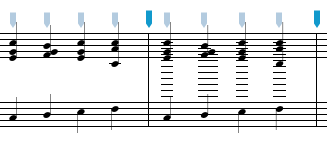
When the staff association is changed, the relative voice number is retained - if an image was in the second voice on staff ID 2 and it is changed to staff ID 1, it will now be on the second voice of staff ID 1.
The Undo operation (Command-z) reverts the document to its state before the last image was added or the last editing change was made. Multiple levels of Undo are available in NoteAbility, so you can walk back through the history of the changes to your document. Although most editing operations can be reversed with undo, many formatting operations cannot. The last operation that can be reversed with undo is displayed in a text field at the bottom of the score window.

Before performing an Undo, check that the Undo Display is showing the change to the document that you want to undo.
The Redo operation (Command-Z) reverts the document to its state before the last Undo was performed. Redo can only be performed after undo (or after a series of undos). Once a new change has been made to the document, you cannot redo any previous undos. The bottom of each score window has an Undo button (left arrow) and a Redo button (right arrow) which can be used instead of the menu items or menu shortcuts:

The Previous Page and Next Page menu items are short cuts for changing pages in the front-most score. Changing pages can also be done by clicking on the Page arrows in the Control panel.
The Spelling sub-menu is part of the Macintosh OS-X environment, and may change with different versions of the operating system. Currently there are three items in the Spelling sub-menu operation:
| Spelling... | ⌘: | To display the Spelling panel. |
| Check Spelling... | ⌘; | To check the spelling of selected words. |
| Check Spelling As You Type | To show spelling errors during typing by underlining the words |
See also


© Keith A. Hamel 1998-2005 - All Rights Reserved |