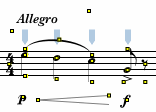
Control Points are the handles by which NoteAbilityPro images can be moved and adjusted. Some images have one control point, some have two, and a few (eg. slurs and curves) have three.
Simple images such as dynamic marks, ornaments have one control point. Clicking on this control point, or including this control point in a selection rectangle allows the entire image to be moved.
Images with two dimensions such as notes (whose stem height changes), crescendo marks, trills, lines, etc. have two control points. Generally, the two control points are located at either end of the image (eg. at the note head and tip of the stem or flag on a note). Clicking on one of these Control Points will adjust the size or shape of the image (eg. dragging the right edge of a trill makes it longer.)
Slurs and curves have three control points, one at the start of the image, one at the top or bottom point of the curve, and one at the end of the image. Depending on the shape of the slur or curve, the middle control point may not be exactly in the centre.
The following example shows the Control Points of various NoteAbility images:
| Image | No. of Control Points | Point 1 | Point 2 | Point 3 |
|---|---|---|---|---|
| Time Signature | 1 | centre of image | ||
| Dynamics | 1 | centre of image | ||
| Text | 2 | bottom-left of text box | top-right of text box | |
| Note | 2 | notehead | end of stem or flag | |
| Crescendo | 2 | left edge | right edge | |
| Rest | 2 | centre of image | beam location | |
| Slur | 3 | left edge | centre | right edge |
Adjusting Images using their Control Points
Images with one Control Point can be adjusted by simply selecting the Control Point and dragging the image. Images with two control points can be adjusted by selecting and moving either of the control points. For example, the stem of a note can be extended by grabbing and dragging the second control point (located at the tip of the stem directly above or below the middle of the note.) In beamed notes, adjusting any but the last note's second control points adjusts the height of the beam while adjusting the control point on the stem of the last note adjusts the angle of the beam. In the case of slurs and curves you can alter the shape of the image by selecting and adjusting any one of the Control Points. In the example below, the second control point of the first note has been dragged lower, then the second control point on the second note has been dragged higher.


Normally, all selected images are adjusted when the mouse cursor is placed in the selected area and the mouse is dragged. However, there are a couple of exceptions: articulations which have been attached to notes, symbols and fermati which have been attached to notes, and tuplet brackets must be adjusted individually.
|
|
See also


© Keith A. Hamel 1998-2005 - All Rights Reserved |
 - To move the entire image rather than only adjusting
one part of the image hold down the Option Key when clicking on the control point. (Notes
are an exception, since their length is automatically adjusted according to their position
on the staff.)
- To move the entire image rather than only adjusting
one part of the image hold down the Option Key when clicking on the control point. (Notes
are an exception, since their length is automatically adjusted according to their position
on the staff.)