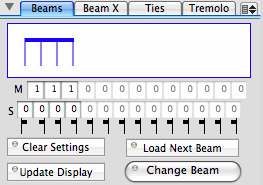
Beams Tab
The Beams tab contains controls for for altering the format of beams. To use this pane, you must first select a beam group (or select a several beam groups), then click on the Load Next Beam button. The beam groups will be loaded sequentially into the pane for editing until all selected beams have been edited.
The display shows the beam format of the selected beam. In this case the beam group below was selected:

The two series of numbers refer to the number of beams between each staff, and the number of short beams that appear on the right or left of the staff. In the example above, each of the segments have one beam and no short beams. These values can be edited and the Update Display button clicked to display the results (as in the exaple below.)
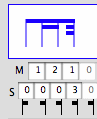
|
|
When the Change Beam button is clicked, the selected beam group is altered in the score and the next selected beam is loaded into the Beam pane ready for editing. Note that the rhythmic positions of the notes are not altered, only the appearance of the beam.

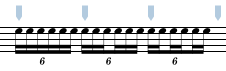
Editing beam groups should only be necessary when the default beam groupings are not to your liking or in unmeasured passages (perhaps using Graphic notes.) The example below shows three different ways of beaming the same group of notes (all are correct in different circumstances):
The Straighten Beam menu item (in the small pull-down menu) is used to straighten selected beams so that they are drawn horizontally (i.e. parallel to the staff lines).
Beam X Tab
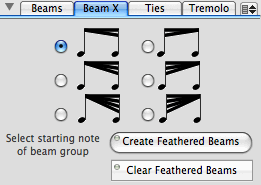
The Beam X tab view contains controls to create and modify feathered beams. Feathered beams are beams that are increase or decrease the number of beams across a series of notes and that represent rhythmic accelerandi or ritardandi. In other words, if you want to represent a gradual increase or decrease in rhythmic values across a beamed group then you may want to use feathered beams.
To create feathered beams, notes must already be beamed. Select the first note of the beam group to be affected by the feathered beam, select the type of feathered beam you want, and click on the Create Feathered Beam button. The feathered beam will be created from between the start note you have selected and the last note in the same beam group (i.e. that contains the same number of beams as the starting note. In the examples below, the first note in the beam group is selected and the second feathered beam in the first column was selected.
 BECOMES
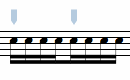 BECOMES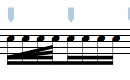
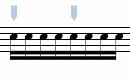 BECOMES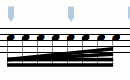
Notice that in each case two additional beams are feathered from the first note in the beam group to the last note in the same beam group.
Feathered beams can be used to form complex beam sequences. However, in some cases you may have to modify the beam grouping using the Beam pane (described above) so that the feathered beam begins and ends where you want it to. Below is an example of a complex feathered beam using three different feathered beam settings.
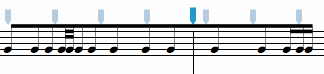
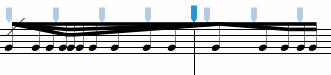
To remove a feathered beam, select the first note of the beam group containing a feathered beam and click on the Clear Feathered Beams button.
Tremolo Beam Tab
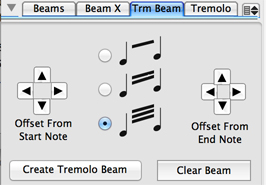
The Tremolo Beam pane is used for creating measured tremolo between notes or chords. To create measured tremolos, select the two notes or chords you want to create the measured tremolo between, choose the number of beams you want to appear and click on the Create Tremolo Beam button.
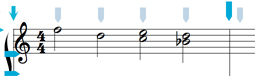
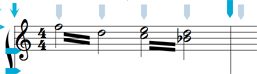
If you want to offset the beginning or ending position of the tremolo beams, use the arrow buttons to adjust the beam position. If you want to remove a tremolo beam, select the first note of the note group and click on the Clear Beam button.
|
|
Tremolo Tab
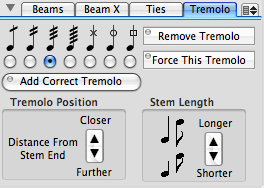
The Tremolo tab view contains controls for adding tremolo slashes to notes and for adjusting the stem lengths of notes.
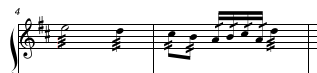
To add tremolo indications to a selected group of notes, you can either set the tremolo speed by choosing one of the radio buttons and click on the Add Correct Tremolo button or you can choose one of the four tremolo speed radio buttons and click on the Force This Tremolo button. The difference between these commands is that Add Correct Tremolo will calculate the number of tremolo beams needed depending on the duration of the notes, whereas Force This Tremolo adds the specified number of tremolo beams to all notes regardless of their duration. The examples below should make the difference clear.
Add Correct Tremolo:
Force This Tremolo:
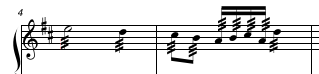
To remove tremolo indications from selected notes click on the Remove Tremolo button.
The tremolo marks are drawn at a set distance from the end of the note stem. You can use the up or down arrows to adjust this distance and thereby change the position of the tremolo on the stem (i.e. it will be drawn closer or further from the stem end.)
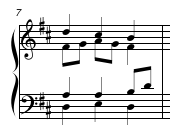
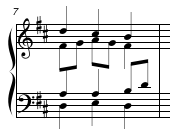
The Stem Length arrows are used to adjust the stem lengths of selected notes, so that they are drawn shorter or longer with each click of the arrow. The stems of all selected notes are altered whether they have flags or beams attached to them. The example below shows a score passage followed by the same passage with shorter stems, then the same passage with longer stems.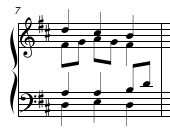
Menus Items
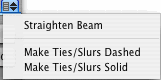
The pull-down menu located at the top-right corner of the Beam, Ties, Tremolo pane contains the following items:
| Straighten Beams | adjust selected beams so that the beam is drawn horizontally (parallel to the staff liens). |
| Make Ties/Slurs Dashed | modify selected ties and slurs so that they are dashed. |
| Make Ties/Slurs Solid | modify selected ties and slurs so that they are solid. |
See also


© Keith A. Hamel 1998-2005 - All Rights Reserved |
 - The small beam direction (to the right or to the left) can be changed by clicking on the small beam icon.