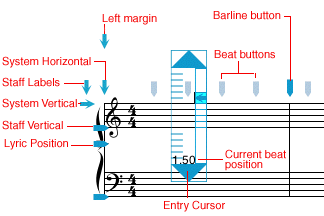
Adjustments to the layout of the musical structure (beat locations, measure size, staff positions, system positions, position of lyrics, positions of staff labels, and page margins) can be done directly on the page by dragging the Score Layout buttons. All affected images on the page are adjusted when these buttons are moved.
Local changes to the page and system format are made by moving the buttons for the system, staff, lyric, barline and beat position. For example, you may move the vertical positioning of the staff by moving the Staff Vertical button up or down. All images associated with that staff will also be adjusted up or down.
Moving different buttons adjusts the page layout at different levels:
| Item Repositioned | Levels affected |
|---|---|
| Left Margin | All systems on the page |
| Right Margin | All systems on the page |
| Top Margin | All systems on the page |
| Bottom Margin | All systems on the page |
| System Horizontal | A single system |
| System Vertical | A single system |
| Staff Labels | A single staff |
| Staff Vertical | A single staff |
| Lyric Position | A single staff |
| Beat Buttons | The beat before and after |
| Barline Buttons | All beats in measure and the barline |
As well as the buttons listed above, there are three buttons which appear to the right of the first staff on each system. The top two buttons (which contain a + and a - symbol) are used to increase or decrease the number of measures in the system. They can be used as a shortcut for the functions available in the Measures In System pane in the Score Structure panel.

The Format System button:  is used to adjust the layout
of the system so that the music is correctly spaced and collisions between images are avoided.
is used to adjust the layout
of the system so that the music is correctly spaced and collisions between images are avoided.
At the left side of each system there is a Lock System button which can be used to stop measures in that system from being re-formatted and stop measures being shifted off that system.
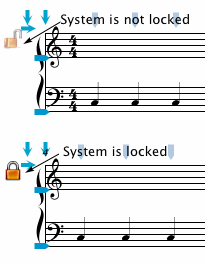
The Score Layout buttons are purely for adjustment purposes and do not appear when the score is printed. To hide these buttons un-check the Show All Buttons item in the Preferences panel or choose the Hide All Buttons menu item in the Format menu.
|
|
An Example of Layout Adjustment
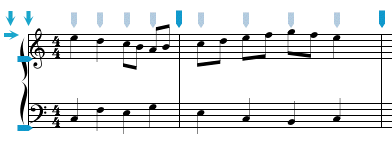
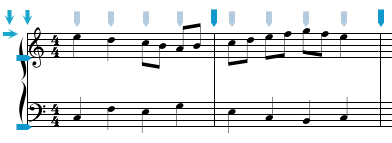
In the example below we are repositioning the notes by moving the first Barline button - notice that all beats in the first measure are stretched and all beats in the second measure are compressed.
Before:
After:
As well as manual adjustment to the page and musical structure (beats, measures etc.), the Format System button (located to the right of the system) and Format Page button (located at the bottom of the score window) use an algorithm (with a compression factor which can be set in Preferences) to adjust all beat positions on the system or page. The horizontal positions of all images are adjusted to make the spacing more aesthetically pleasing and to avoid collisions between successive notes and accidentals. When the Auto Format button is checked in the Preferences panel, a Format System command is invoked whenever the Entry Cursor completes a line of music and moves to the next system.
|
|
The Entry Cursor
Notes and rests are entered at the beat location determined by the left edge of the Entry Cursor and indicated numerically at the bottom of the Cursor. The Entry Cursor can be moved with the Move Entry Cursor tool (on the Control panel), by dragging the Cursor by the vertical bar on the right side of the Cursor, by using the spacebar (forward) or Shift-key and spacebar (backward), or by holding down the Command key and clicking the mouse at a new location. In measures where notes have not yet been entered, the Entry Cursor can be placed at every .25 of a beat. In measures where notes and rests already appear, the Entry Cursor can be placed at every .25 of the beat and at any beat location where a note or rest already exists. A small red dot appears on the entry cursor when it is on a full beat position (as opposed to begin between beats.)
To move the Entry Cursor vertically to another staff within the same system you can click on the up or down arrows at the top and bottom of the Cursor.
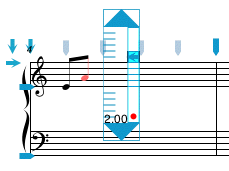
In the example above, the next entered note will appear at beat position 2.00 (the beginning of the second beat).
|
|
See also


© Keith A. Hamel 1998-2005 - All Rights Reserved |
 - Since many scores do not use lyrics, the Lyric Position buttons can be kept hidden with a setting in the