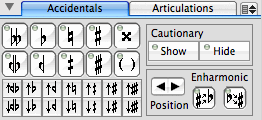
Accidentals Tab
The Accidentals & Articutlation pane is used for adding accidentals to notes, for hiding or showing accidentals, for placing parentheses around accidentals and for adjusting the position of accidentals. In every case, notes in the score to be altered are first selected, then the appropriate button is clicked.
To add accidentals to selected images, click on desired accidental button. The top row of buttons is used for adding standard accidentals, the bottom row includes accidentals for making notes: 3/4 flat, 1/4 flat, 1/4 sharp and 3/4 sharp. The last button adds parentheses around the accidental (or removes the parenthesis if the accidental already contains one). The bottom two rows of buttons are for adding 1/8 tones which display an up or a down arrow beside the appropriate 1/4 tone accidental.
To shift accidentals to the enharmonic above or below, click on one of the enharmonic buttons. (The first button - enharmonic above - shifts the selected note(s) to the same sounding pitch but on a higher diatonic step - C# -> Db. The second button - enharmonic below - shifts the selected note(s)to the same sounding pitch on a lower diatonic step - C# - > Bx.). In the example below Bb-C was stated three times, the second time it was enharmonically shifted above, the third time is was enharmonically shifted below:
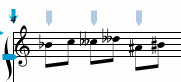
Accidental positions (i.e. the distance they appear to the left of the note) can be adjusted by clicking on the two arrow buttons. In the example below, the accidental positions of the second chord have been adjusted to the left.

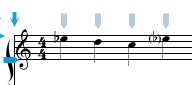
To show or hide cautionary accidentals, click on the Show or Hide buttons. In the example below, the Eb on the 4th beat was not shown when entered. It was created by selected the note, then clicking on the Show button, then clicking on the parenthesis button.
|
|
Articulations Tab
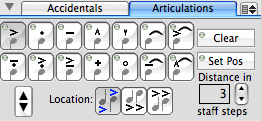
The Articulations pane is used for adding articulations to notes (or chords), for removing them and for changing their position relative to the note. In each case, select the notes to be altered before using the buttons in this pane. (Since the last note entered is automatically considered to be selected, you can click on these buttons after entering a note in order to add an articulation to the note.
To add an articulation to a selected note or group of notes
The example below shows the 3 location options - each pair of notes is set to a different location:
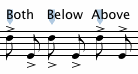
To remove an articulation from a selected note or group of notes, click on the Clear button.
To change the position of articulations, set whether the location of the articulation and set the distance in staff spaces that the articulation should appear above or below notes, then click on the Set Pos button.
In the example below, the position of articulations (which appear above or below notes) have been changed from 3 to 5 staff spaces:
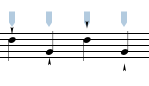
To large Up and Down arrows are provided for a shortcut for position adjustments to the articulations of selected notes.
|
|
Ties Tab
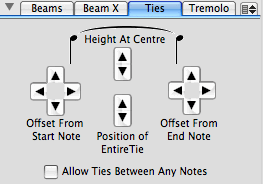
The Ties tab view contains controls to modify the appearance of ties. To alter a tie, you must select the note that the tie originates from. The adjustment arrows on this pane are self-explanatory: the four arrows at the start note and end note adjust the starting and ending position of the tie relative to the note, and the two middle buttons increase or decrease the height of the tie's arc.
The adjustments to the starting and ending positions are used in chords which include seconds as in the following example where the starting tie position of the middle note in the chord is shifted to the right three units.


If the height of all three ties are increased (with the up arrow), the result is:

Adjustments to the entire tie position are sometimes needed when dots or accidentals interfere with the tie. In the example below, the top tie has been shifted higher to avoid colliding with the dot.
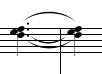
The All Ties Between Any Notes check box allows you to tie notes that would not normally be tied. This check box enables tieing between note that are different pitches or notes that are in different voices.
|
|
Menu items
The pull down menu located at the top-right corner of this pane is a duplicate the NoteAbilityPro Modify/Notes menu and contains the following menu items:
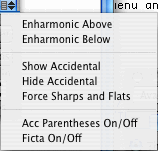
| Enharmonic Above | shift selected notes to the enharmonic a step above |
| Enharmonic Below | shift selected notes to the enharmonic a step below |
| Show Accidental | show the accidental regardless of the current accidental rule |
| Hide Accidental | hide the accidental regardless of the current accidental rule |
| Force Sharps and Flats | force sharps and flats on selected notes to be shown |
| Acc Parentheses On/Off | toggle parentheses around accidentals on or off |
| Ficta On/Off | toggle ficta accidentals On/Off (ficta accidentals appear above the notes rather than to the left of them) |
See also


© Keith A. Hamel 1998-2005 - All Rights Reserved |
 - You can also use the